Change render Space (Color Profile) - how?
-
Dear Dev Team,
I have a plugin that renders (Standard C4d Renderer - fastest for plain color at the time) a flat color rendering (no dithering, shading, or lights) of object display color (yes plain object color, no textures). Input and output have to be the exact same color, to evaluate if the camera "sees" an object. This plugin worked before 2025.2 with "sRGB linear" workflow.
Render output looks like this (the more objects the more colors of course):

Quick solution for me is to change the "Render space" to legacy "sRGB linear workflow"
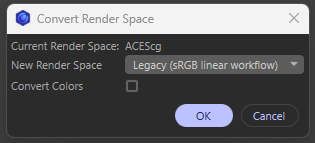
Question: -> how would I do that in python ? (and back to the users render Color-space so it does not mess up the users settings)Is there a better way to get Input object color and rendered color to be exactly the same with no color space change? A color transform on the bmp? how would I do that?
thank you for your time
-
Hey @mogh,
the answer can be found in the OCIO examples, specifically here. In the example I do the exact opposite from what you want to do, I convert a scene from legacy/basic mode to OCIO. Its inverse would look somewhat like what I show below. I hope this helps.
Cheers,
Ferdinand"""Demonstrates how to convert a document from OCIO color management to basic color management. """ import c4d op: c4d.BaseObject | None # The primary selected object in the scene, can be None. doc: c4d.documents.BaseDocument # The currently active document. def main() -> None: """Runs the example. """ # The document is already in basic mode, so no conversion is needed. if doc[c4d.DOCUMENT_COLOR_MANAGEMENT] == c4d.DOCUMENT_COLOR_MANAGEMENT_BASIC: return c4d.gui.MessageDialog("The document is already in basic mode. No conversion is needed.") # Get the converter, and the active render space, which by default will be ACEScg. converter: c4d.modules.render.SceneColorConverter = c4d.modules.render.SceneColorConverter() renderSpace: str = doc.GetOcioRenderingColorSpaceNames()[0] # Initialize the converter with: # doc, from-low , from-high , to converter.Init(doc, renderSpace, renderSpace, "scene-linear Rec.709-sRGB") # Convert everything in the document (we pass the document itself as the second argument). The # undo management is only needed so that our DOCUMENT_COLOR_MANAGEMENT below is reversible. The # ConvertObject call creates undo steps on its own with the default flag we pass. doc.StartUndo() doc.AddUndo(c4d.UNDOTYPE_PRIVATE_DOCUMENTDATA, doc) if not converter.ConvertObject(doc, doc): print(f"Failed to color convert document '{doc}'.") # Finally, set the color management mode to basic/legacy. It is absolutely important that we do # things in this order, otherwise SceneColorConverter will not work correctly. doc[c4d.DOCUMENT_COLOR_MANAGEMENT] = c4d.DOCUMENT_COLOR_MANAGEMENT_BASIC doc.EndUndo() c4d.EventAdd() if __name__ == "__main__": main() -
Hi Ferdinand
Thank you for your Answer,I am trying to implement this, ... atm a lot of uncertain stuff at my end .... quick follow up question
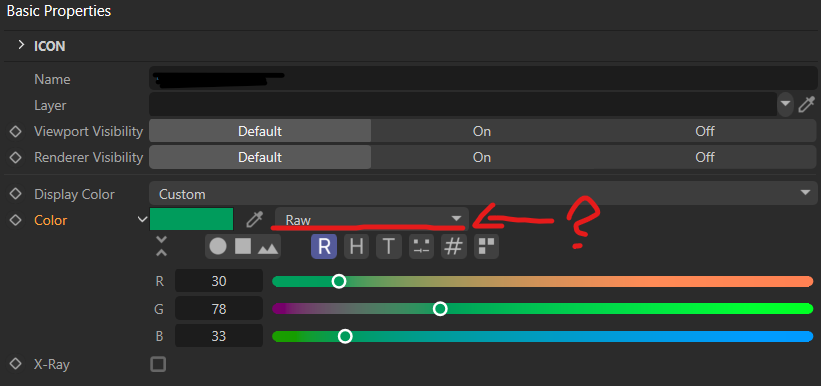
How do i set the Color Profile of an object Color ? ( dragging object color to console only gives the vector )
Thank you
-
Hey @mogh,
you cannot do that, because we do not provide access to GUIs as always, only to the data structures that stand behind them. When you see this dropdown in a document, it means it is in OCIO mode. Which in turns means all colors are in render space; which is the main idea of OCIO that all computations happen in render space. All color read and write operations happen in render space, i.e., ACEScg by default. You can use a color converter to convert a color from for example sRGB to render space. But there is no color space setting for a color, that is just UI fluff. See GetSetColorValuesInSceneElements.
I would recommend to read:
Cheers,
Ferdinand -
Thank you,
I guess i have to rewrite the color creation and profile settings of my plugin ... too many "this seemed to work sometime" code bits

-
Yes, OCIO having become the standard color management entailed some changes. In case your plugin is some kind of
NodeData, you should also look at ocio_node_2025. -
ok, no node here ...
Objectcolor [c4d.ID_BASEOBJECT_COLOR] Vector(0.001, 0, 0.021) -> rendering pixelcolor should be Vector(0.001, 0, 0.021)Somewhere my colors are "transformed" I have to systematically rebuild it to find the "conversions" .... and how to prevent them ...
-
I do not quite understand your question. A node (e.g., an object) will always hold its color parameters in render space. The only exception is
NodeData.Initand it is explained in the example. -
Ok i did not grasp that a node can also be an object ... thought about it as "texture node" ...
There was no question ...I got
doc[c4d.DOCUMENT_COLOR_MANAGEMENT] = c4d.DOCUMENT_COLOR_MANAGEMENT_BASICto work but only after the document (new or freshly loaded) was rendered once .... did I find a bug or do i have to "save" the render / color settings after setting up ....
I tried to insert an
c4d.EventAdd()here and there but nothing helped ...executing / rendering a second time is totally fine ... !
        def colorspace(self, doc, rd, revert=False):
        #### Convert Color Space
        # 0 = c4d.DOCUMENT_COLOR_MANAGEMENT_BASIC = Legacy sRGB Linear
        # 1 = ACEScg
        # ['ACES2065-1', 'ACEScg', 'scene-linear DCI-P3 D65', 'scene-linear Rec.709-sRGB', 'scene-linear Rec.2020']

        # ATM this does not convert anything it just sets the C4D DOCUMENT_COLOR_MANAGEMENT to the legacy mode and back

        if self.IsForceLinear is True:
            rd[c4d.RDATA_IMAGECOLORPROFILE] = c4d.bitmaps.ColorProfile.GetDefaultLinearRGB()
            rd[c4d.RDATA_FORMATDEPTH] = 2 # 0=8Bit 1=16Bit 2=32bit
        else:
            rd[c4d.RDATA_IMAGECOLORPROFILE] = c4d.bitmaps.ColorProfile.GetDefaultSRGB()
            rd[c4d.RDATA_FORMATDEPTH] = 0

        print("Image:", rd[c4d.RDATA_IMAGECOLORPROFILE])

        ### Set Render Color Bit to 32 Bit
        doc[c4d.DOCUMENT_COLORPROFILE] = 1 # 0 sRGB 1 Linear 2 deactivated

        if c4d.GetC4DVersion() >= 250020:
            if revert==True:
                print("Revert Color Space triggered")

                doc[c4d.DOCUMENT_COLOR_MANAGEMENT] = 1 # 1 = ACEScg
                pass

            else:
                print("Convert Color Space triggered")
                if doc[c4d.DOCUMENT_COLOR_MANAGEMENT] == c4d.DOCUMENT_COLOR_MANAGEMENT_BASIC:
                    print("The document is already in basic mode.")
                else:
                    print("Current Render Color Space: ",doc.GetOcioRenderingColorSpaceNames()[doc[c4d.DOCUMENT_COLOR_MANAGEMENT]])
                    doc[c4d.DOCUMENT_COLOR_MANAGEMENT] = c4d.DOCUMENT_COLOR_MANAGEMENT_BASIC

                if doc[c4d.DOCUMENT_COLOR_MANAGEMENT] == c4d.DOCUMENT_COLOR_MANAGEMENT_BASIC:
                    print("-> Set to Basic Mode")

                doc.ExecutePasses(
                    bt=None,
                    animation=False,
                    expressions=True,
                    caches=True,
                    flags=c4d.BUILDFLAGS_NONE
                )

        c4d.EventAdd()
thank you for your time and patience ...
-
You likely have to call
UpdateOcioColorSpaces, just follow the example. There is btw no guarantee at all thatDOCUMENT_COLOR_MANAGEMENTentails a render space of ACEScg. That is just the default, the user could have changed that.I am also not sure what all that
RDATA_IMAGECOLORPROFILEcode is meant to do. It depends a bit on what your plugin does and whatself.IsForceLinearis meant to express. Only so much: An OCIO document does not necessarily entail a bitmap with a non-linear color profile, and OCIO also does not mean that the bitmap has to be 32bit. You are however missingUNDOTYPE_PRIVATE_DOCUMENTDATAundo management for setting the color management.