Example gui_palette
Demonstrates how to build and run a non-modal dialog (a pallette).
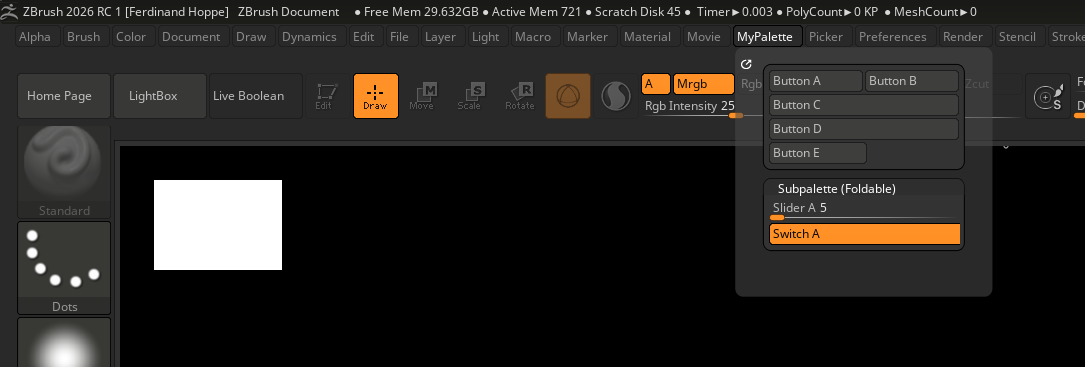
Fig. I: A possible outcome of the example.
Code
"""Demonstrates how to build and run a non-modal dialog (a pallette).

ZBrush uses two central UI paradigms: palettes and notes. Palettes are a non-modal form of UI, where
the user can interact with the interface without being forced to make a decision. Notes, on the other
hand, are modal dialogs that require user interaction before they can return to the main interface.

Palettes can be docked in the UI and contain sub-palettes and UI gadgets such as buttons, sliders,
and switches. This example builds a simple palette with buttons and a slider, demonstrating how to
use callbacks to react to interface events.
"""
__author__ = "Ferdinand Hoppe"
__date__ = "13/08/2025"
__copyright__ = "Maxon Computer"

from zbrush import commands as zbc

def on_click(sender: str) -> None:
    """Callback function that is called when a button is clicked.

    We could write multiple callback functions for multiple buttons, but #sender allows us to
    identify which button was clicked, so we can handle multiple buttons with a single function.
    """
    if sender.endswith("Button A"):
        print("Button A clicked")
    elif sender.endswith("Button B"):
        print("Button B clicked")

    # At any time we can poll the UI with #get.
    print(f"Current value of Slider A: {zbc.get('xPalette:Subpalette (Togglable):Slider A')}")
    print(f"Current value of Switch A: {zbc.get('xPalette:Subpalette (Togglable):Switch A')}")

def on_value_change(sender: str, value: float) -> None:
    """Callback function that is called when a slider or other value-changing element is changed.
    """
    if sender.endswith("Slider A"):
        print(f"Slider A value changed to {value}")
    elif sender.endswith("Switch A"):
        print(f"Switch A toggled to {bool(value)}")

def main() -> None:
    """Executed when ZBrush runs this script.
    """
    # If there is already a palette named "MyPalette", close it, so that we always start from scratch.
    palette: str = "MyPalette"
    if zbc.exists(palette):
         zbc.close(palette)

    # Add a new palette named "MyPalette" to the ZBrush interface which will auto dock to the right.
    # Then add a subpalette named "Subpalette" to the "MyPalette" palette which has no title bar and
    # is always open.
    zbc.add_palette(palette, docking_bar=1)
    subpalette: str = f"{palette}:Subpalette"
    zbc.add_subpalette(subpalette, title_mode=2)

    # Adds two buttons to the "Subpalette" subpalette. Instead of a an explicit callback function,
    # we can also use a lambda function. In fact any callable will work. It also important to
    # understand the unit system of interface gadgets.

    # Two buttons which use the #on-click callback and which have an automatic width (0, the default).
    zbc.add_button(f"{subpalette}:Button A", "Button A Tooltip!", on_click, width=0)
    zbc.add_button(f"{subpalette}:Button B", "Button B Tooltip!", on_click , width=0)

    # Two buttons which use a lambda function as the callback and which have a relative width in the
    # the interval |0, 1]. Since both occupy 100%, they will be each placed in one line. It is
    # recommended to always set a relative width of 1.0 for elements that should occupy a full line
    # and not let ZBrush decide automatically (as it can get it wrong).
    zbc.add_button(f"{subpalette}:Button C", "", lambda item: print(f"{item} pressed"), width=1.0)
    zbc.add_button(f"{subpalette}:Button D", "", lambda item: print(f"{item} pressed"), width=1.0)

    # And finally a button with a fixed width in pixels. WARNING: When your gadget is larger than
    # the available space, it may not be displayed correctly.
    zbc.add_button(f"{subpalette}:Button E", "", on_click, width=100)

    # ----------------------------------------------------------------------------------------------

    # Adds a subpalette named "Subpalette (Foldable)" to the "Palette" palette which has a title bar
    # and a minimize button, and is foldable.
    subpalette_foldable: str = f"{palette}:Subpalette (Foldable)"
    zbc.add_subpalette(subpalette_foldable)

    # Adds a slider and a switch to the "Subpalette (Foldable)" subpalette.
    zbc.add_slider(f"{subpalette_foldable}:Slider A", 2, 1, 0, 10, "Some help text.",
                   on_value_change, width=1.0)
    zbc.add_switch(f"{subpalette_foldable}:Switch A", True, "Some help text.", on_value_change,
                   width=1.0)

    # Retroactively change the min/max values of the slider from 0-10 to 5-15.
    zbc.set_min(f"{subpalette_foldable}:Slider A", 5)
    zbc.set_max(f"{subpalette_foldable}:Slider A", 15)

    # Set the value of an interface element. We can use it both the set numeric values and booleans
    # such as a toggle.
    zbc.set(f"{subpalette_foldable}:Slider", 7)
    zbc.set(f"{subpalette_foldable}:Switch", True)

    # And finally unfold our palette, if we would not do this, it would start our in a folded state.
    zbc.maximize(subpalette_foldable)

    # Other than for modal notes, there is no main loop or manual polling required. Our UI will work
    # via the callbacks defined above. But at any point, one of the call backs could call this
    # function again to rebuild the UI.

if __name__ == "__main__":
    main()