Table of Contents
Learn how to build, debug, and extend the C++ SDK on Windows.
This manual is accompanied by the YouTube playlist Getting Started with the Cinema 4D C++ SDK on Windows, which demonstrates the steps described here. The videos and this manual will take you through the process of getting started with the Cinema 4D C++ SDK on Windows, from setting up your development environment to building and debugging the SDK, and finally to extending it with your own plugins.
- Warning
- Make sure that the API version of this documentation (in the top right corner) is set to the version of the SDK you are using. This only applies to the online version of the documentation.
Prerequisites
To follow this guide, you will have to download and install the following software. Please also see the Technical Requirements for more detailed information on the requirements and supported versions.
| Requirement | Description |
|---|---|
| Cinema SDK | Download from developers.maxon.net or use the sdk.zip found in a Cinema 4D installation folder. |
| Visual Studio | Install a version compatible with the SDK you are using. See the Visual Studio website. |
| Python 3 | Required by CMake, download from the Python website. |
| Cinema 4D | Must be the same version as the SDK you are using and have an equal or higher minor version than the SDK. |
| CMake | Download from the CMake website. |
| Clang | You will only need this if you want to use the Clang toolset in Visual Studio (explained also here). |
- Note
- Read the ABI Compatibility documentation before you choose an SDK version. You usually want to use a
XXXX.0.0SDK, the first release within a major version, to maximize the compatibility of your plugin with different Cinema 4D versions. - Pick the newest version of Cinema 4D available to debug your plugins with this SDK. So, when you picked for example the 2026.0.0 SDK, you should still use the latest minor release of Cinema 4D 2026, e.g., 2026.3.0, to debug in an environment that is as close as possible to what your customers will be using.
- Read the ABI Compatibility documentation before you choose an SDK version. You usually want to use a
Building the SDK
Generating a Build System
The Cinema 4D SDK is not shipped with a build system for either of the supported platforms. Instead, the project files must be generated with the build system generator CMake. Generating a build system with the CMake GUI splits into two phases, a configuration and a generation phase, each invoked by a button press in the middle of the CMake GUI. The video shown below will take you through all necessary steps on Windows.
- Warning
- Please note that the required Windows SDK version has changed from what is shown in the video, please see Build Systems for the currently required version.
- Configuration Phase
During this phase, you define basic inputs such as the project path, output path, and build system type. Cinema 4D projects use presets to simplify configuration. The following settings must be defined:
| Option | Description |
|---|---|
Where is the source code | Set this to the root folder of your project, not the modules/plugins folder. |
Preset | Select the target build system. We recommend to start with 'Visual Studio 2022 x64 v143' as a beginner. |
Where to build the binaries | Path for CMake to generate the build system. This is auto-populated when a preset is selected but can be customized. |
On Windows, other than for MacOS and Linux, we have multiple presets to choose from.
| Preset | Description |
|---|---|
| Visual Studio 2022 x64 v143 | Generates a Visual Studio 2022 solution for x64 architecture using the MSVC v143 toolset. |
| Visual Studio 2022 x64 ClangCL | Generates a Visual Studio 2022 solution for x64 architecture using the ClangCL toolset. |
| Visual Studio 2022 ARM64 v143 | Generates a Visual Studio 2022 solution for ARM64 architecture using the MSVC v143 toolset. |
| Visual Studio 2022 ARM64 ClangCL | Generates a Visual Studio 2022 solution for ARM64 architecture using the ClangCL toolset. |
X64 is the most common architecture and covers the traditional X64 chipsets from Intel and AMD. ARM64 is targeting the new ARM64 chipsets for Windows, such as the Snapdragon chips from Qualcomm. When you are new to C++ development on Windows, we recommend to start with the 'Visual Studio 2022 x64 v143' preset. Besides the architecture, you must also choose the toolset you want to use.
| Toolset | Description |
|---|---|
| MSVC | The traditional Microsoft Visual C++ compiler. This is the recommended toolset for beginners on Windows as it provides a more forgiving compiler experience and often also easier to understand error messages. |
| ClangCL | The Clang compiler from the LLVM project. This is a more modern and stricter compiler than MSVC which can help you to write better code but it can also be more difficult to work with for beginners due to its stricter nature and sometimes more difficult to understand error messages. We recommend this compiler when you plan on porting your code to MacOS or Linux as Clang CL aligns in its strictness better with Apple's Clang and GCC on Linux. But choosing MSVC does not meant that you cannot port your code to MacOS or Linux, it just means that you might have to do a bit more work to make it compile on those platforms (by fixing for example implicit conversions that MSVC allows but Clang and GCC do not allow). Clang is also often considered to be the be the compiler with shorter compile times than MSVC, but since plugin projects tend compile in minutes or seconds, this difference is often negligible and should not be the main factor in choosing a compiler. |
Once these settings are defined, click the Configure button. A dialog will appear, but the preset will predefine most settings. Click Finish to proceed. CMake will copy relevant data and display output in its console. If successful, the Generate button will be enabled.
- Warning
- We only support the provided build system presets. Using different Visual Studio versions, build tools, or compilers may result in partial or non-functional builds. If deviations are necessary, start with a preset and modify the Configure dialog to match your environment.
- Generation Phase
In this phase, you can configure Cinema 4D SDK-specific settings and generate the final project files. Key options include:
| Option | Type | Description |
|---|---|---|
CMAKE_CXX_STANDARD | CMake | Defines the C++ standard (default: 20). Do not change this setting. |
MAXON_C4D_EXECUTABLE | SDK | Path to the Cinema 4D executable for debugging plugin binaries. Optional. |
MAXON_FILTER_UNUSED_FRAMEWORKS | SDK | Set to true to include only referenced frameworks, reducing build times. |
MAXON_MODULES_DIR | SDK | Location of the modules folder (default: plugins folder in the project). |
MAXON_SDK_CUSTOM_PATHS_FILE | SDK | File for custom module paths and aliases. See Custom Paths. |
MAXON_SDK_EXTERNAL_LIBS_DIR | SDK | Location of the libs folder (default: libs folder in the project). |
- Warning
- The default startup project is
ALL_BUILD, which lacks debug options. If you setMAXON_C4D_EXECUTABLE, you must manually set a module project as the startup project to use preset debug options.
- Note
- You can manually set the debug application in Visual Studio. Right-click a project, select Set as Startup Project, then open Properties. Under
Debugging, set theCommandto the Cinema 4D executable andCommand Argumentsto the binary output path, e.g.,g_additionalModulePaths=D:/documents/sdk/_build_v143/bin/Debug/plugins/.
Once all settings are configured, click Generate. CMake will display output in its console. If successful, the Open Project button will be enabled.
Compiling a Build System
Once you have generated a solution with CMake, you can open it in Visual Studio by clicking the Open Project button in CMake. The solution reflects the structure of the SDK and contains all the projects and files that are part of the SDK. The frameworks folder in the solution contains the content of the frameworks folder of the SDK, here you can find the definition of the Cinema 4D API. A framework bundles a section of the Cinema 4D API that is thematically related, the asset.framework contains for example the API for the underlying data types of the Asset Browser. Frameworks are also used to include aspects of the Cinema 4D API with a project, so that the header files of that framework can be included in a source file of that project.
Before you can build the solution, you must select the configuration you want to build. The configuration can be either Release or Debug. A debug build will give you better debugging capabilities but will be slower than a release build, and plugins compiled with a debug configuration should never be shipped to customers.

Once the configuration has been selected, you can build the solution by pressing F7 or selecting Build Solution from the Build menu. The SDK now starts building and doing it for the first time can take a while. When the build has finished you can see the message 'Build: XY succeeded, 0 failed, 0 up-to-date, 0 skipped' in the Visual Studio output window. There should not be any failed projects. If there are, the error messages can also be found in the output window. Feel free to ask for help on the Maxon Developer Forum if you encounter any issues.
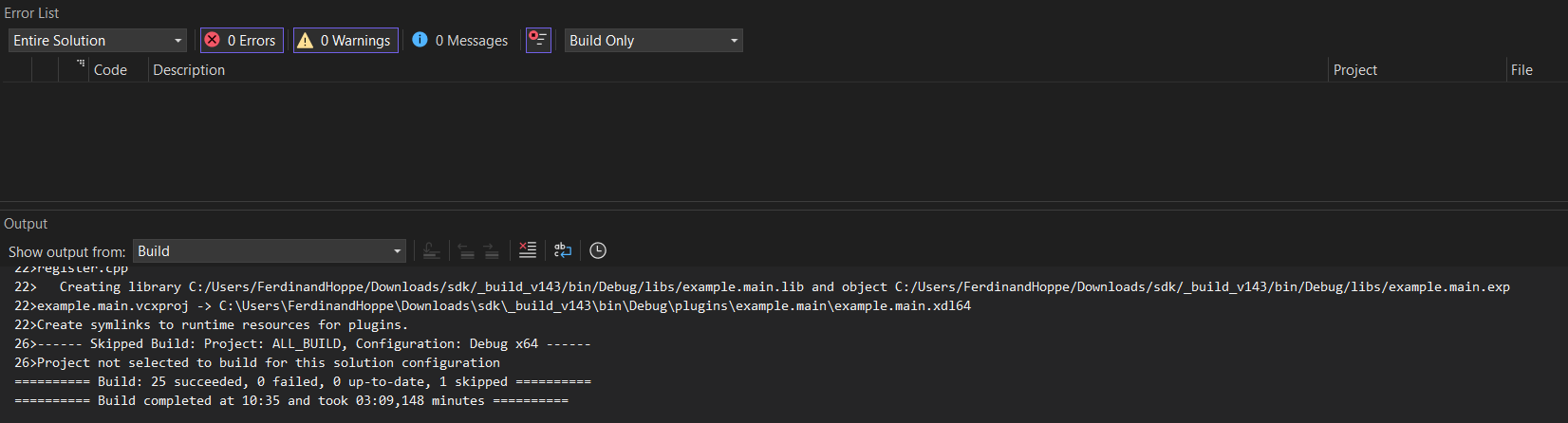
Once the build has finished, you can find the compiled plugins binaries in the respective project folders in the sdk/{build}/bin/{config}/plugins folder of the SDK. E.g., the binaries for a MSVC debug build of the example.main project would be located by default in sdk/_build_v143/bin/Debug/plugins/example.main/example.main.xdl64. On Windows, the compiled module files are .xdl64 files, on macOS .xlib files, and on Linux .xso64 files. Generated is also the manifest file for each plugin which is used to describe the plugin to Cinema 4D. Additionally generated are the .pdb files which are the debug symbols for the plugins. These files are used by the debugger to map the compiled code back to the source code.
Debugging the SDK
Now that you have built the Cinema 4D C++ SDK, you can debug its binaries in Visual Studio. Debugging allows you to set breakpoints, inspect variables, and utilize Cinema 4D's debugging features.
Configuring the Debugger
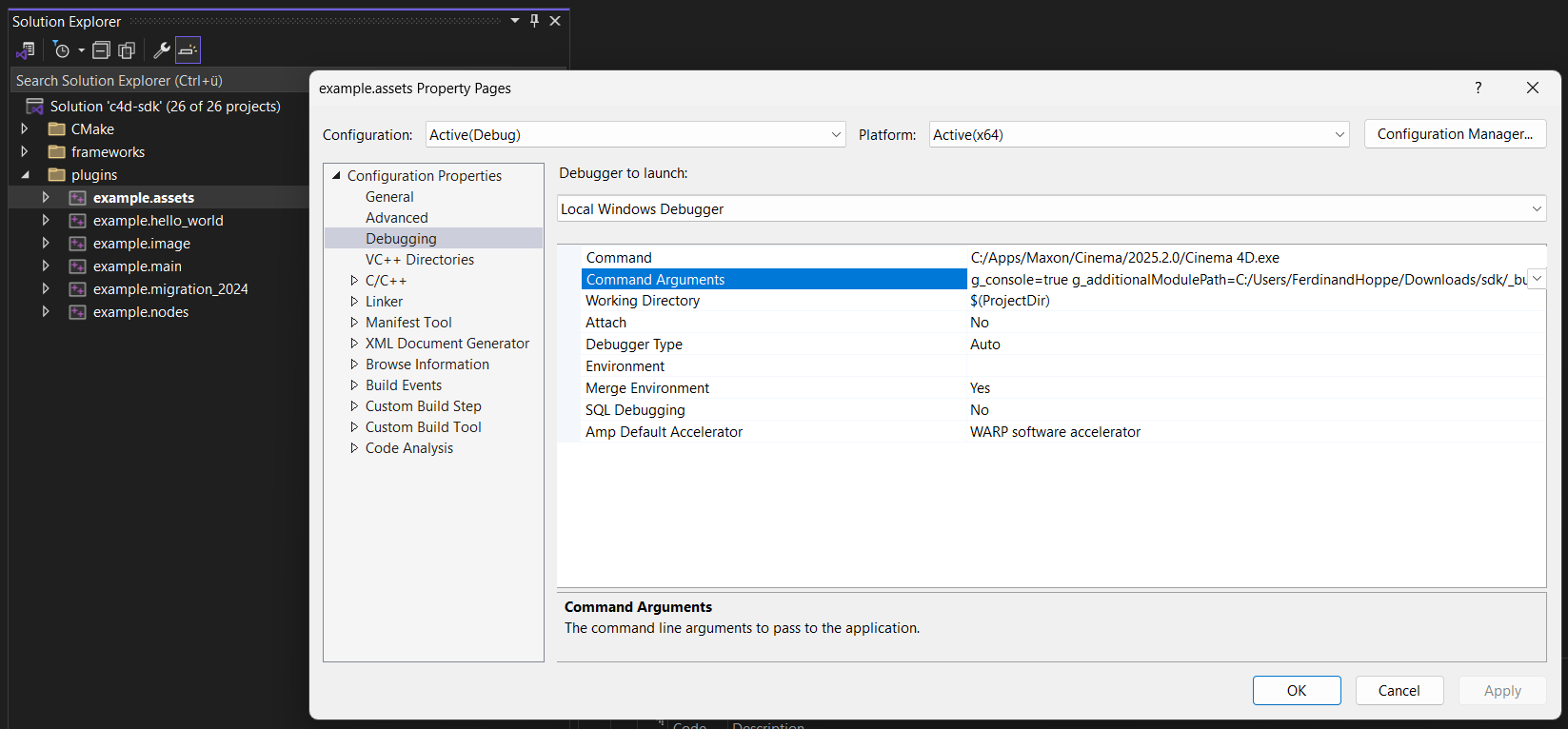
When you have followed the CMake instructions in the previous sections, you have already set the MAXON_C4D_EXECUTABLE option in CMake, which will have set the debug configurations for you. You can therefore skip this section and go directly to the next section. When you have skipped this option, you must now manually setup the debugger for at least one project in Visual Studio. Select one project from the plugins section in the Visual Studio Solution explorer and open its properties by right-clicking it and selecting Properties from the context menu.
In the project properties, navigate to the Debugging section and set the Command to a Cinema 4D executable that matches the used SDK. When you would now start debugging, Cinema 4D would start, but it would not load your plugin because it would not know that your plugin does exist. To fix this, set the Command Arguments to the string shown below which will tell Cinema 4D to load all plugins in the sdk/plugins/ folder. Alternatively, you could also set the plugin path in the preferences of that Cinema 4D installation.
- Note
- You can always debug a plugin binary with a Cinema 4D version that exactly matches the SDK version the plugin has been compiled. To learn more about the compatibility between compiled plugin binaries and different Cinema 4D versions, see the ABI Compatibility .
Attaching the Debugger
Before we can actually start the debugger, we must first set the startup project of the solution. The startup project is the project that will be started when you press F5 or the green 'Local Windows Debugger' button in the toolbar of Visual Studio. You can set the startup project by right-clicking the project in the Solution Explorer and selecting Set as Startup Project from the context menu. When you have manually configured the debugger for a project, you must set that project as the startup project. When you have set the MAXON_C4D_EXECUTABLE option in CMake, you can pick any project in the plugins section as the startup project, you could for example pick example.main.
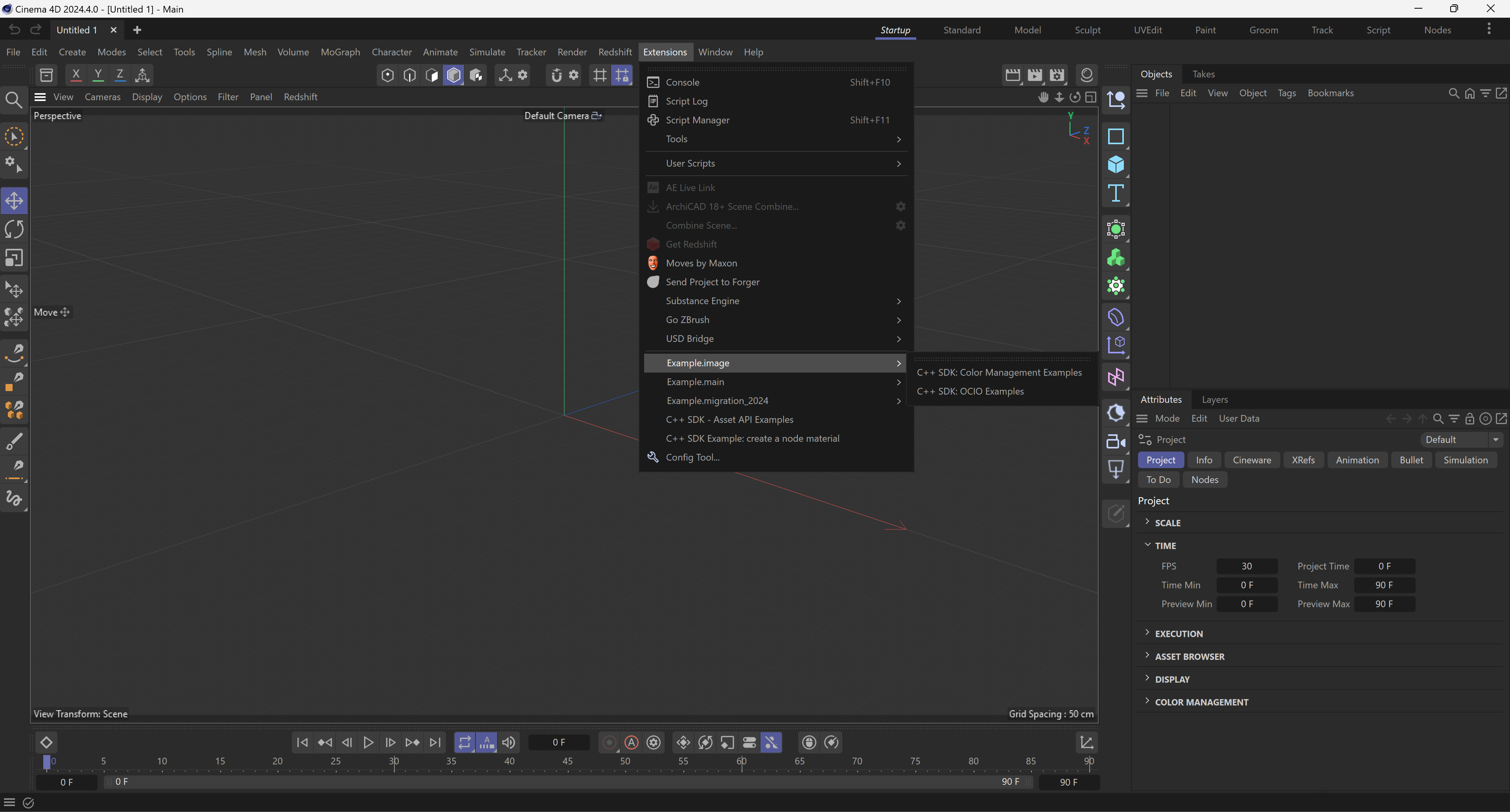
Now you can press F5 or green 'Local Windows Debugger' button in the toolbar of Visual Studio to start the debugger. The debugger will boot Cinema 4D which will also load your plugin. Once Cinema 4D has started, you can check its Extensions menu to see if the C++ SDK has been loaded.
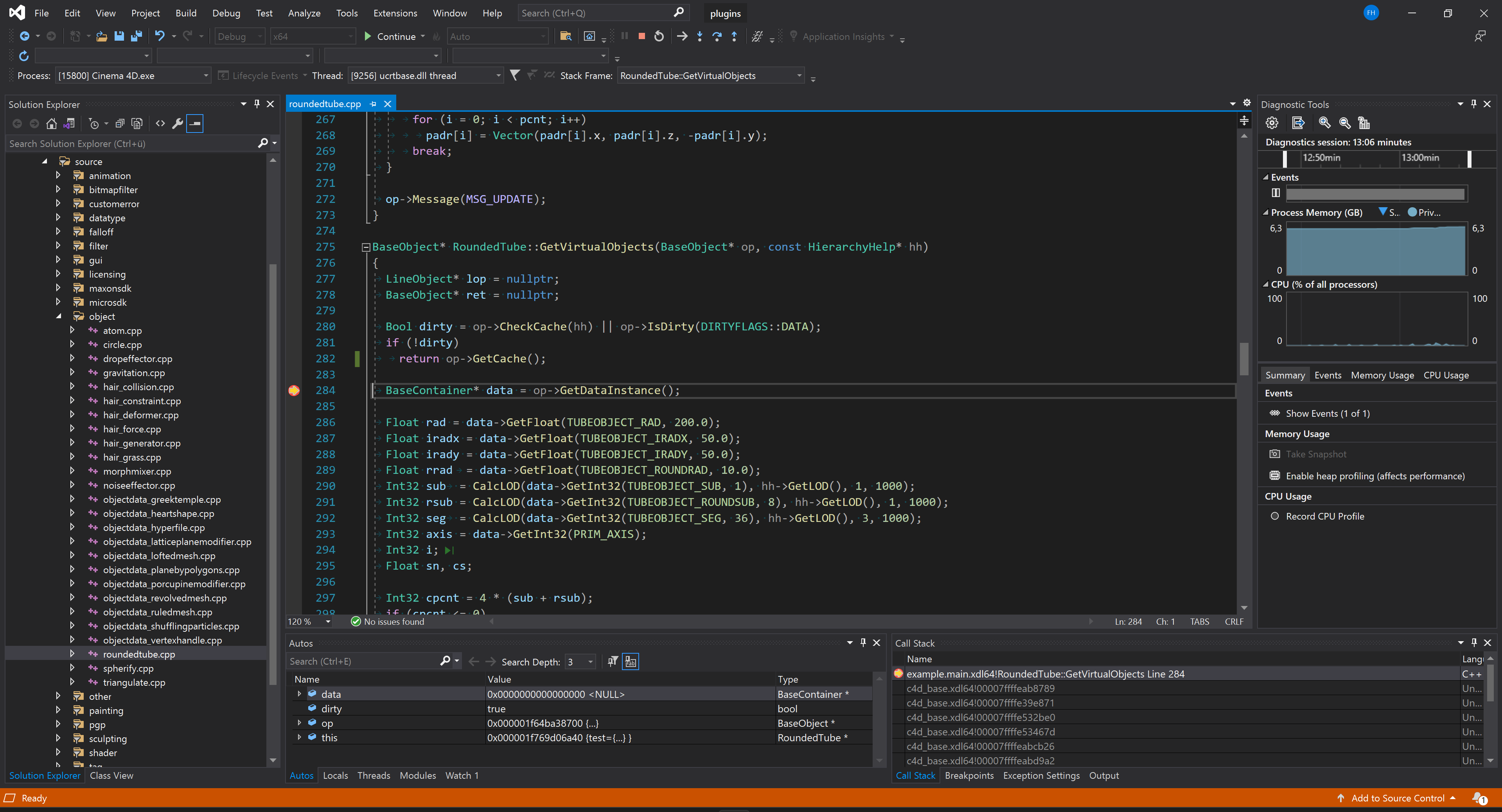
Without closing Cinema 4D and without stopping the debugger in Visual Studio, you now return to Visual Studio. There you navigate to the file modules/example.main/source/object/roundedtube.cpp in the solution explorer and open it by double-clicking it. In the file, you open the search by pressing CTRL+F and search for the definition of the method RoundedTubeData::GetVirtualObjects. Here you set a breakpoint by left-clicking left of a line number of one of the lines of the method. The breakpoint should lie within the scope, the curly braces, of the method. The line should now be marked by a red dot.
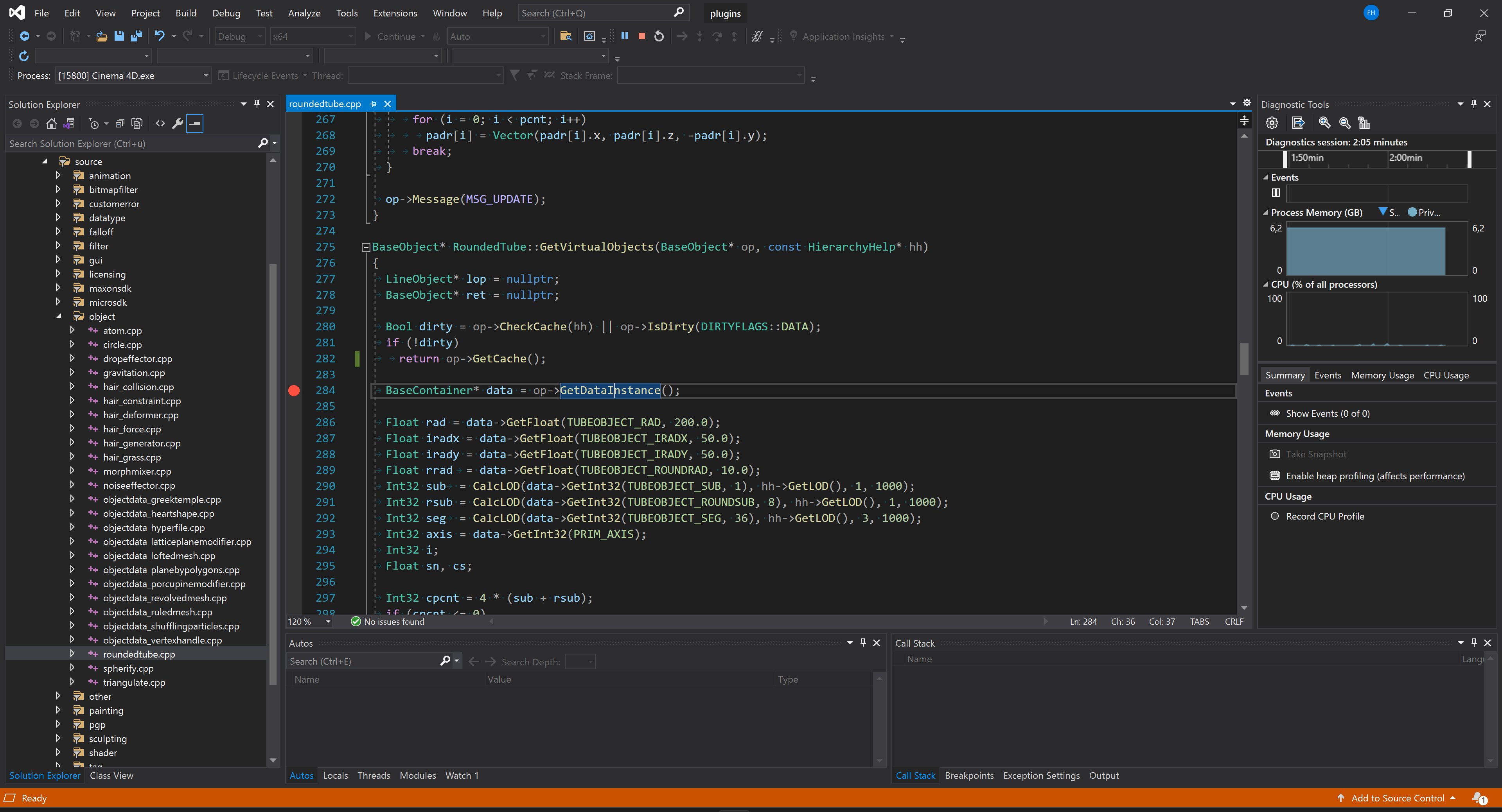
RoundedTubeData::GetVirtualObjects() method while the debugger is running. You can also set a breakpoint when the debugger is not running, we just do it here in one go so that you do not have to reboot Cinema 4D between debugging the SDK for the first time and setting your first breakpoint. Back in Cinema 4D, you can now invoke the Rounded Tube code example from the Commander by pressing SHIFT+C and typing Rounded Tube and then hitting Enter. Cinema 4D will now create an instance of the RoundedTubeData object which will try to build its geometry cache. The debugger will halt on your breakpoint because you have set it in RoundedTubeData::GetVirtualObjects(), the method which is responsible for building the geometry of that plugin.
You can now step through the code by pressing F10 to step over the current line or F11 to step into the current line. You can also inspect variables by hovering over them with your mouse or by adding them to the watch window by right-clicking them and selecting Add Watch.
Advanced Techniques
You can now stop the debugger by pressing SHIFT+F5 or selecting Stop Debugging from the Debug menu. We will now learn how to print (debug) messages in the Cinema 4D API to its various consoles and how to invoke debug stops from code.
To do that, first remove your breakpoint by clicking on the red dot in the code editor of the modules/example.main/source/object/roundedtube.cpp file.Then insert the code shown below into the RoundedTubeData::GetVirtualObjects the file so that the snip marks line up with the existing code.
Now rebuild the solution by pressing F7 and after that start the debugger again by pressing F5. In Cinema 4D, create again an instance of the Rounded Tube object. The debugger will now halt on its own on the first manual halt in your code, the DebugStop, and then on the second manual halt, the CriticalStop. Press F5 to continue the execution of the program after each halt, or press the green 'continue' button in the toolbar of Visual Studio.
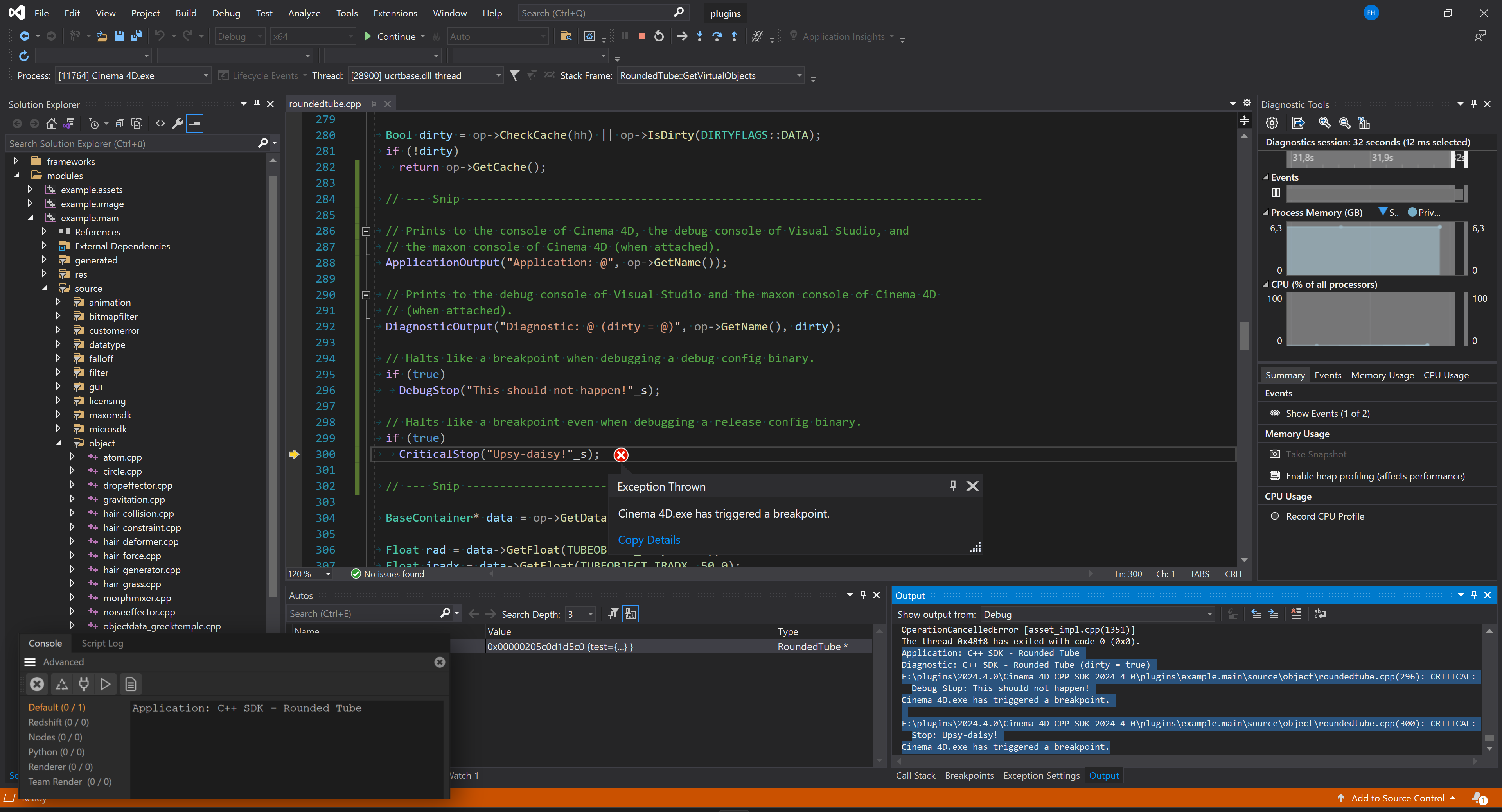
CriticalStop. In the lower right corner you see the Visual Studio output window which shows the output of the ApplicationOutput and DiagnosticOutput calls, as well as the messages of both DebugStop and CriticalStop. The ApplicationOutput call is also shown in the Cinema 4D console, superimposed in the bottom left corner. - Note
- To see the output of the
ApplicationOutputcalls in the Cinema 4D console, you must have the Cinema 4D console open. You can open the Cinema 4D console by selecting Extensions > Console from the Cinema 4D menu. To see output in the maxon console, you must run Cinema 4D with the command line argumentg_console=trueorg_consoleDebugger=true. The former will only show the Cinema 4D console when no debugger is attached, the latter will always show the Cinema 4D console.
ApplicationOutput is a relatively expensive call and you should avoid it in production code for everything but critical messages which are meant to be seen by the end-user. When you spam the Cinema 4D console with messages, you not only render it unusable for others but also eat up considerable system resources as rendering the console takes time. DiagnosticOutput is a less expensive call than ApplicationOutput and should be used for messages that are meant for developers and not for end-users.
There are more output functions available in the Cinema 4D API, see the Console Output for more information. The Output functions all support the maxon string output syntax which is described in the Output Syntax page. The general idea is that the \@ character is used to insert variables into the string and you can pass as many variables as you want to these functions as they are all variadic functions.
DebugStop and CriticalStop are used to halt the execution of the program just like a breakpoint would. DebugStop will only halt the program when it is being debugged in a debug configuration, CriticalStop will halt the program in all configurations. These functions can be useful to bake breakpoints into your code to halt a debugger when something truly critical happens that you did not expect to happen. For end-users these functions will not do anything, they are only active when the program is being debugged.
But you might also run into these two functions without using them yourself as they are often used in the Cinema 4D frameworks to halt the program when something unexpected happens. When you hit a DebugStop or worse, a CriticalStop, in the frameworks while debugging your plugin, it usually means that you either do something truly wrong or have found a bug in Cinema 4D. Most of our debug stops unfortunately are not very informative and do not have an error message attached. But you can look at the framework code to get a sense of what is going wrong. When you hit a wall in such cases, do not hesitate to ask for help on the Maxon Developer Forum.
Extending the SDK
Now that you have built and debugged the Cinema 4D C++ SDK, it is time to add your first custom plugin.
- Note
- This section focuses on the steps to create a new module and plugin. For specific plugin types, refer to the code examples.
To add a new plugin, create a new module folder in the plugins directory. The folder name determines the plugin binary name. Inside this folder, create a project folder containing a projectdefinition.txt file and a source folder with a main.cpp file.
Adding a Project
First you must create a new module folder in the plugins folder of your solution. The name of the new folder will determine of the plugin binary into which your module will be compiled. In this folder, you must create a project folder and in that folder a projectdefinition.txt file. You also need a source folder in the project folder and in that folder a main.cpp file.
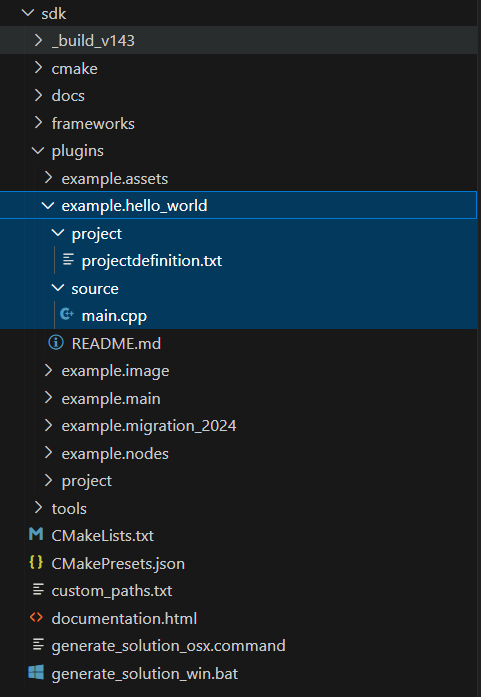
example.hello_world project provides an example for the minimal setup of a new Cinema 4D module. The projectdefinition.txt file contains the instructions for CMake to generate the project files for the module. The main.cpp file contains the code of the module, in this case a simple command plugin which opens a message dialog with the text "Hello World!" when invoked. Setting up a Project
Now you must fill the projectdefinition.txt file of your new project with instructions for the CMake.
CMake will generate the solution files for the project based on the information in the projectdefinition.txt files it finds in each module. The projectdefinition.txt file must contain at least the following information:
- The platforms the project is targeting, e.g.,
Platform=windows;macos;linux. - The type of the project, usually
Type=DLL. - The frameworks the project uses, e.g.,
APIS=cinema.framework;cinema_hybrid.framework;core.framework. - The module identifier of the project, e.g.,
ModuleId=net.maxonexample.hello_world.
To learn more about projectdefinition.txt files, see the Configuring Build Systems.
- Warning
- You cannot use module identifiers in the domain
"net.maxon."as they are reserved for Maxon Computer. Plugins using such identifiers will not be loaded by Cinema 4D.
- See also
- Configuring Build Systems for more information on the
projectdefinition.txtfile.
- Note
- Frameworks for details on the Cinema 4D API frameworks and how to use them.
Writing the Plugin
Now it is time to finally fill your main.cpp file with the code of your plugin. This section is mostly about the boilerplate code you need to get a plugin up and running and uses the minimal code necessary to implement a plugin. The plugin will be a simple command that opens a message dialog with the text "Hello World!" when invoked.
- Note
- This section demonstrates how to implement Cinema API plugins which make up the vast majority of plugin types such as commands, tools, messages handlers, scene hooks, objects, tags, (Cinema API legacy) materials, (Cinema API legacy) shaders and more. Plugins in the Maxon API are implemented entirely differently and are not covered in this section. The Maxon API primarily covers plugins that implement custom assets for the Asset API and plugins that implement custom node spaces, node systems, and node templates for the Node API. See Plugin Types for an overview of the different plugins types.
Most plugins also split up their code into multiple files, the main.cpp file and one or multiple files that implement the actual plugin. The main.cpp is usually only used to handle plugin messages sent to the module the main.cpp is the entry point of, while the actual plugin code is implemented in other files. This example condenses all the code into the main.cpp file for simplicity.
The content of the main.cpp file in the plugins/myplugin/project/source folder should look like as shown below:
The important aspects of getting a module and plugin up an running are:
- The cinema::PluginStart function is the entry point for registering all Cinema API plugins and called when your module is being loaded. A plugin that does not register itself or whose registration fails will not be accessible to users as it will not be loaded. This function must be implemented in the
main.cppfile of a project. - The cinema::PluginEnd function is called by Cinema 4D when a module is about to be unloaded. Most plugins use the empty implementation shown here as they do not have to do any manual cleanup. This function is usually implemented in the
main.cppfile of a project. - The PluginMessage function is called by Cinema 4D when a plugin message is sent to the module. There are several messages but all plugins must implement at least
C4DPL_INIT_SYSas shown here. Otherwise, the module and its plugins will not work. See Plugin Messages for more information on the plugin message system. - All plugins must register themselves with Cinema 4D by using the specific registration functions intended for their plugin type. In this case, the RegisterCommandPlugin function is used to register a command plugin. One or multiple of these registration function calls are then usually bundled up in a
RegisterMyPlugin()function that is called fromPluginStart()in the module. TheRegisterMyPlugin()function is often implemented in one of the plugin files, e.g.,myplugin.cppand is then 'included' in themain.cppfile as a forward declaration.
The arguments passed to plugin registration functions such as RegisterCommandPlugin differs from plugin type to plugin type but there are some commonalties:
- The first argument is the identifier of the plugin. This identifier must be unique and new identifiers must be obtained from developers.maxon.net.
- Passed are so usually also a plugin label, a tooltip, and some form of icon (there some plugin types which do not have an icon or tooltip).
- And finally either an instance of the plugin class or a function that returns an instance of the plugin class. The plugin class must inherit from a specific plugin hook of the Cinema 4D API, e.g.,
CommandDatafor a command plugin.
- Warning
- You can 'invent' plugin identifiers for a plugins you use only for testing purposes. But when you want to ship a plugin or plan to uses it for a prolonged time, you must obtain a plugin identifier from developers.maxon.net. Otherwise you risk identifier conflicts with other plugins which will lead to one of the plugins not being loaded.
To run your plugin, you must now rebuild the solution by pressing F7. Make sure that you have no build errors and then start the debugger by pressing F5. In Cinema 4D, you can now find the plugin as Extensions > MyPlugin Menu Label. When you click the item, a message dialog with the text "Hello World!" will open.
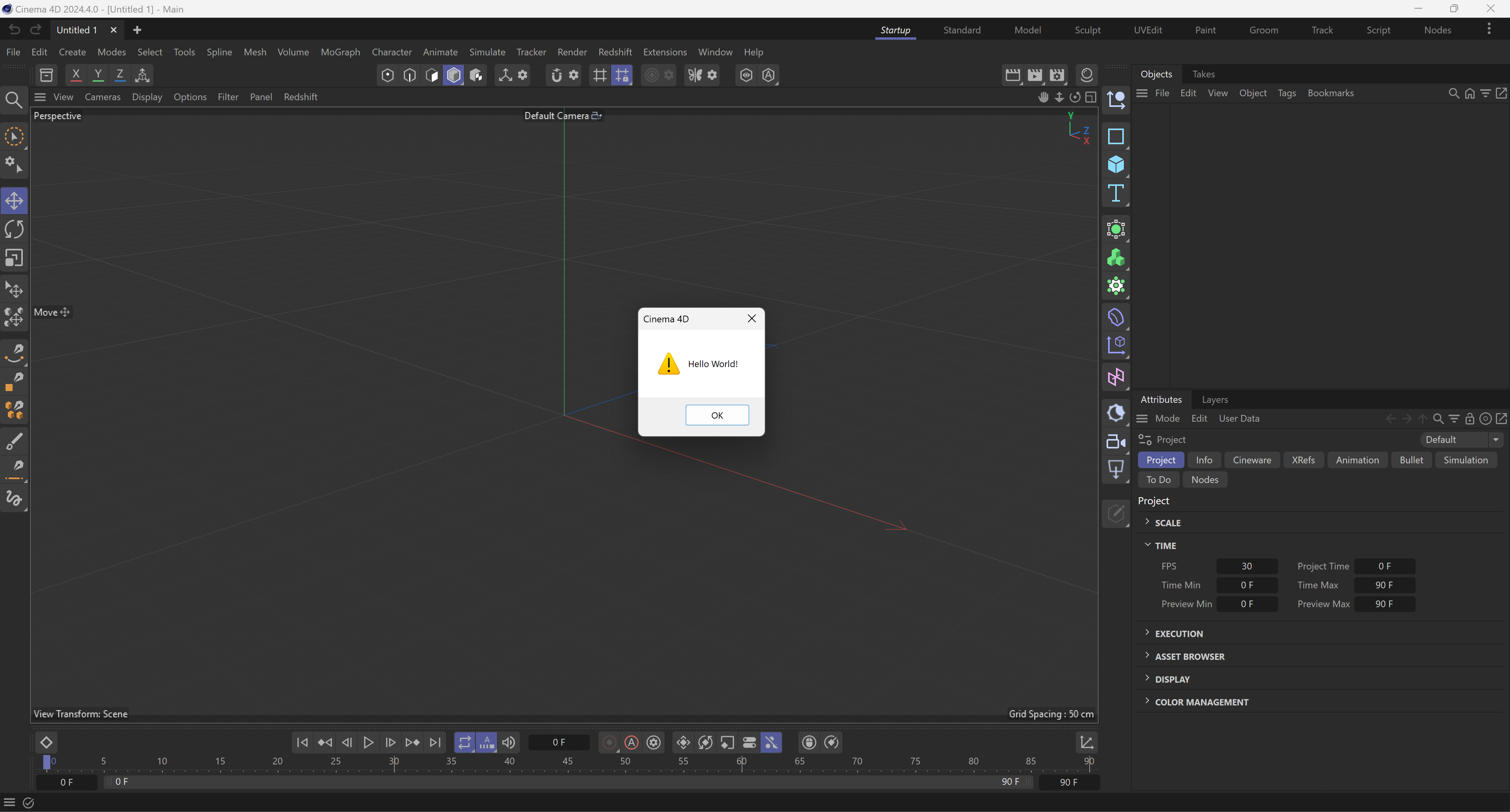
Extensions menu. Further Reading
- API Overview : Overview of the Cinema 4D C++ SDK.
- Build Systems : Detailed guide on project generation for Cinema 4D C++ API projects.