

Script Manager and Console
Write and run scripts in the Script Manager and inspect results in the Python Console.
The Script Manager is for editing, saving, and running scripts. The Python Console runs short commands and shows output and errors from scripts, plugins, and scene elements. Both are available in the Script layout; you can also open them from the Script menu. Check the Console when a script does not produce the expected result.
Both tools run code on Cinema 4D’s main thread. A long-running loop blocks the interface; see
Threading Restrictions. Both supply doc (the active BaseDocument) and op (the
active object, or None). In the Console, c4d is already imported. In a saved script, import modules explicitly.
Script Manager
Action |
How |
|---|---|
Create |
Choose File > New to start a script. |
Save |
Choose File > Save to keep the script. |
Run |
Click Execute to run the current script. |
Assign a shortcut |
Use Shortcut to run the script with a key combination. |
Create a button |
Drag the script icon into the Cinema 4D interface. |
An unsaved script has an asterisk beside its name. Saved scripts are stored in library/scripts under the Cinema 4D
preferences folder, available through Preferences > Open Preference Folder.
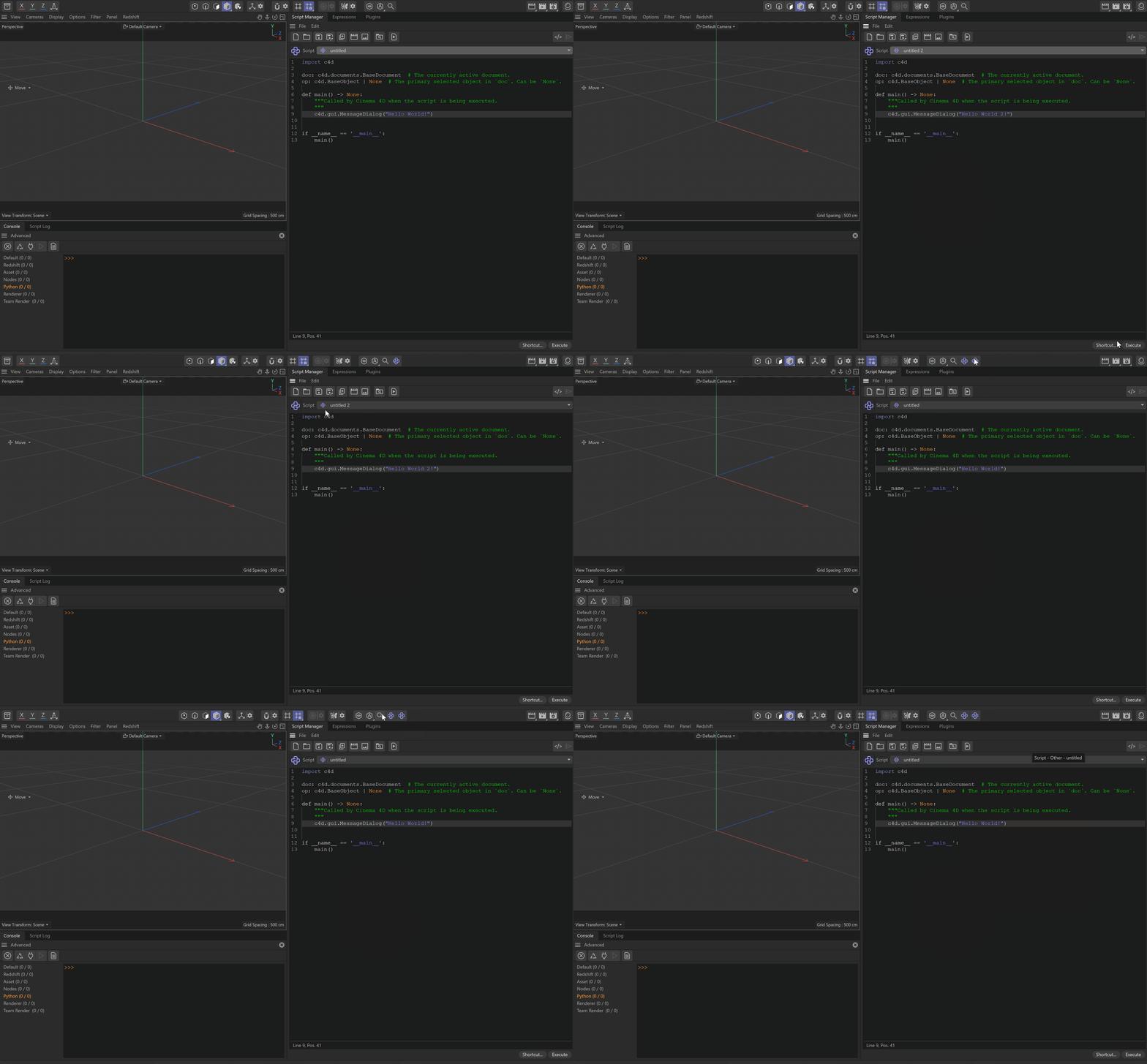
Fig. 1: A script can be run from the Script Manager, its script button, or the Commander.
The button runs the saved script. To give it a custom label and description, put these fields in its module docstring:
"""Name-en-US: My Script
Description-en-US: Run my Cinema 4D script
"""
Use File > Load Icon in the Script Manager to assign an icon. For a button that can be disabled or checked, define
state() in the script and return False, c4d.CMD_ENABLED, or c4d.CMD_ENABLED | c4d.CMD_VALUE as needed.
Keep state() fast: Cinema 4D can call it on every interface redraw.
Python Console
The Cinema 4D console shows message and error output from various sources. But the Python console is more than that, it allows you to interact with the scene and execute Python commands directly. It can also be used to inspect scene elements and parameters by dragging them into the console.
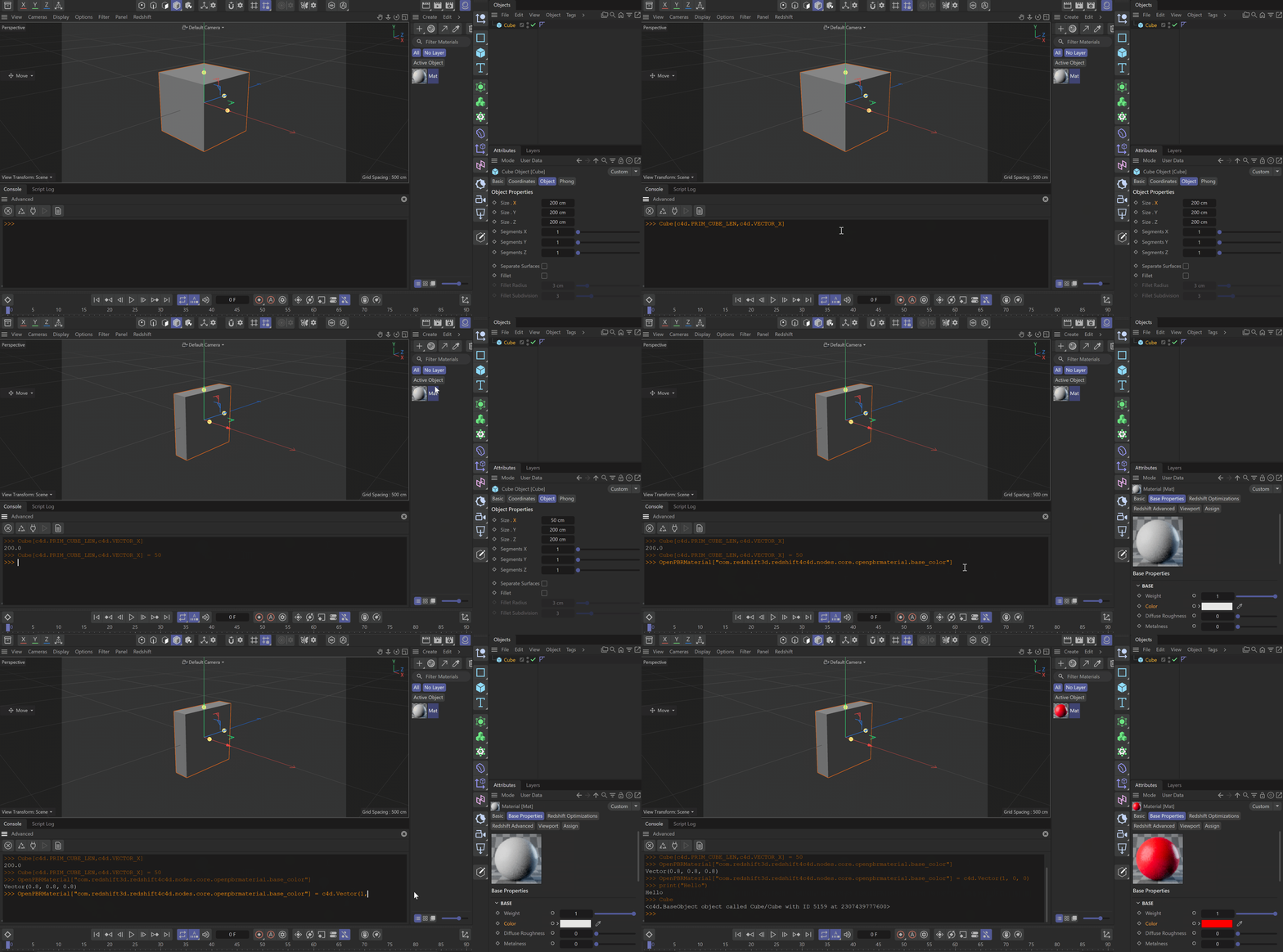
Fig. 2: The Python Console runs commands and accepts dragged scene elements and parameters.